Enjoy the ultimate Japanese online TV streaming experience with MujiTV, bringing you live content straight from Japan.
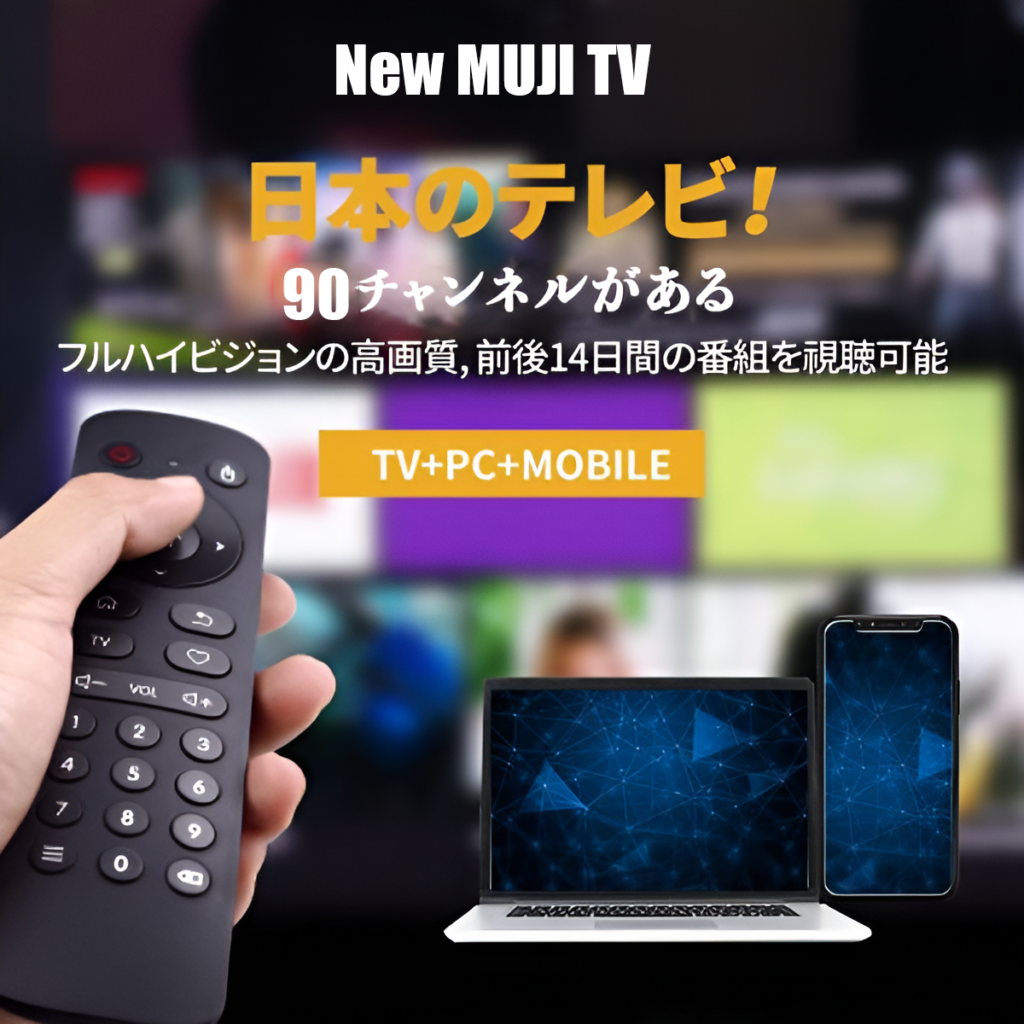
MujiTV offers live streams of up to 90 TV channels, accessible via any online browser, with a diverse lineup spanning news, sports, anime, and dramas. For your convenience, we automatically store two weeks of programming, ensuring you never fall behind on your favorite content.
No matter if you’re traveling or relaxing at home, Japanese TV is just a tap away — compatible with your phone, tablet, computer, and smart TV. Our easy-to-use interface and top-tier technology deliver an unparalleled viewing experience, letting you fully engage with Japanese language and culture.
Your total satisfaction with MujiTV is our top priority — that’s why every one of our plans comes with a risk-free guarantee. Should you be dissatisfied with your viewing experience, we’ll happily process a refund (minus PayPal fees, admin fees, and charges for days used). To help you pick the perfect plan for your needs, we strongly suggest trying our 3-day bundle first — before signing up for a long-term subscription.
Pick from two distinct MujiTV channel packages:
Important reminder: MujiTV MINI and PRIME are distinct, independent accounts. Renewing MujiTV MINI requires having a MINI account, while renewing MujiTV PRIME requires the corresponding PRIME account. MujiTV MINI (38 Channels),There is no movie video VOD,MujiTV PRIME (90 Channels),Including movies and TV dramas from all online film and television platforms
MujiTV MINI (38 Channels)
MujiTV PRIME (90 Channels)
MujiTV is not available in Japan and Mainland China
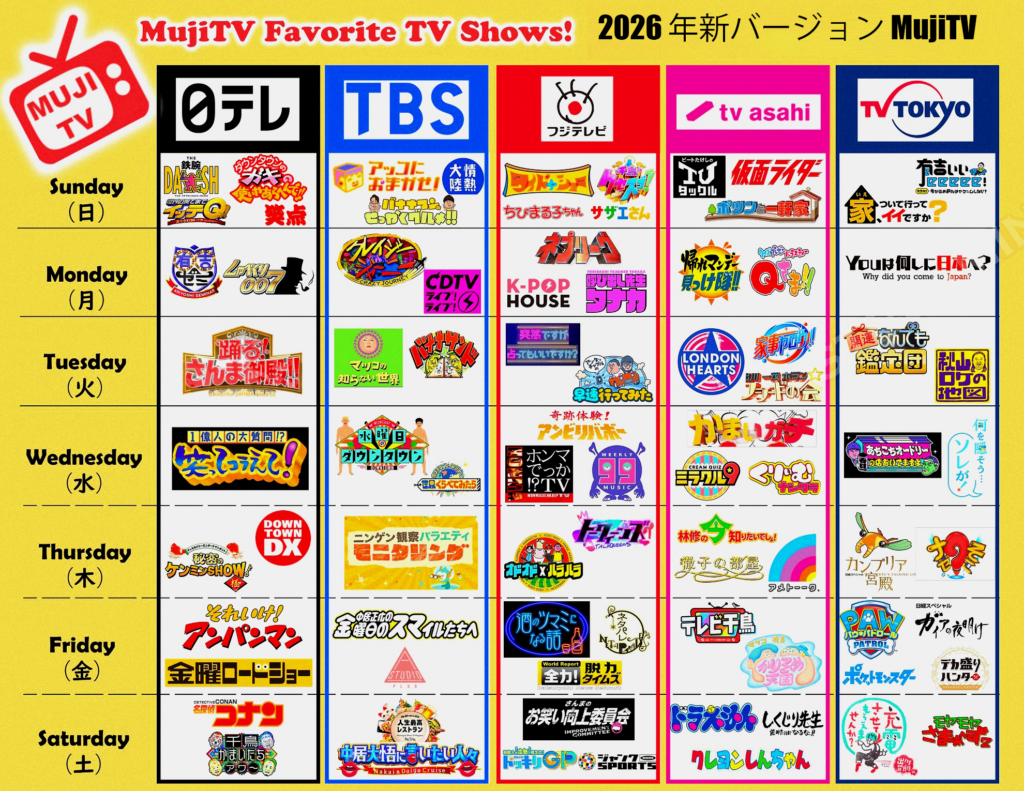
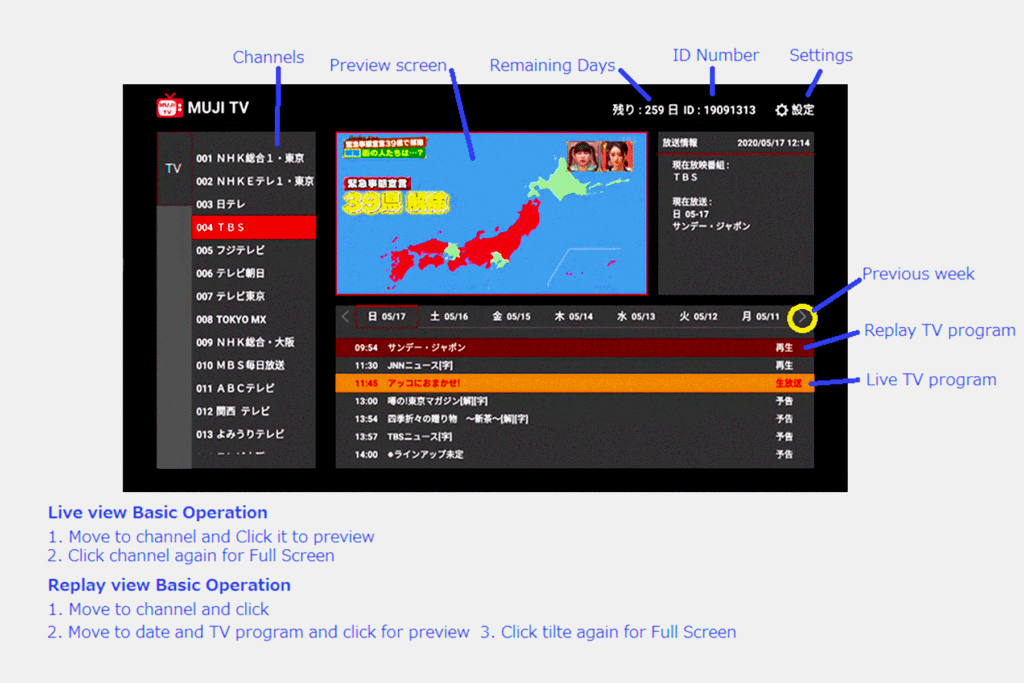
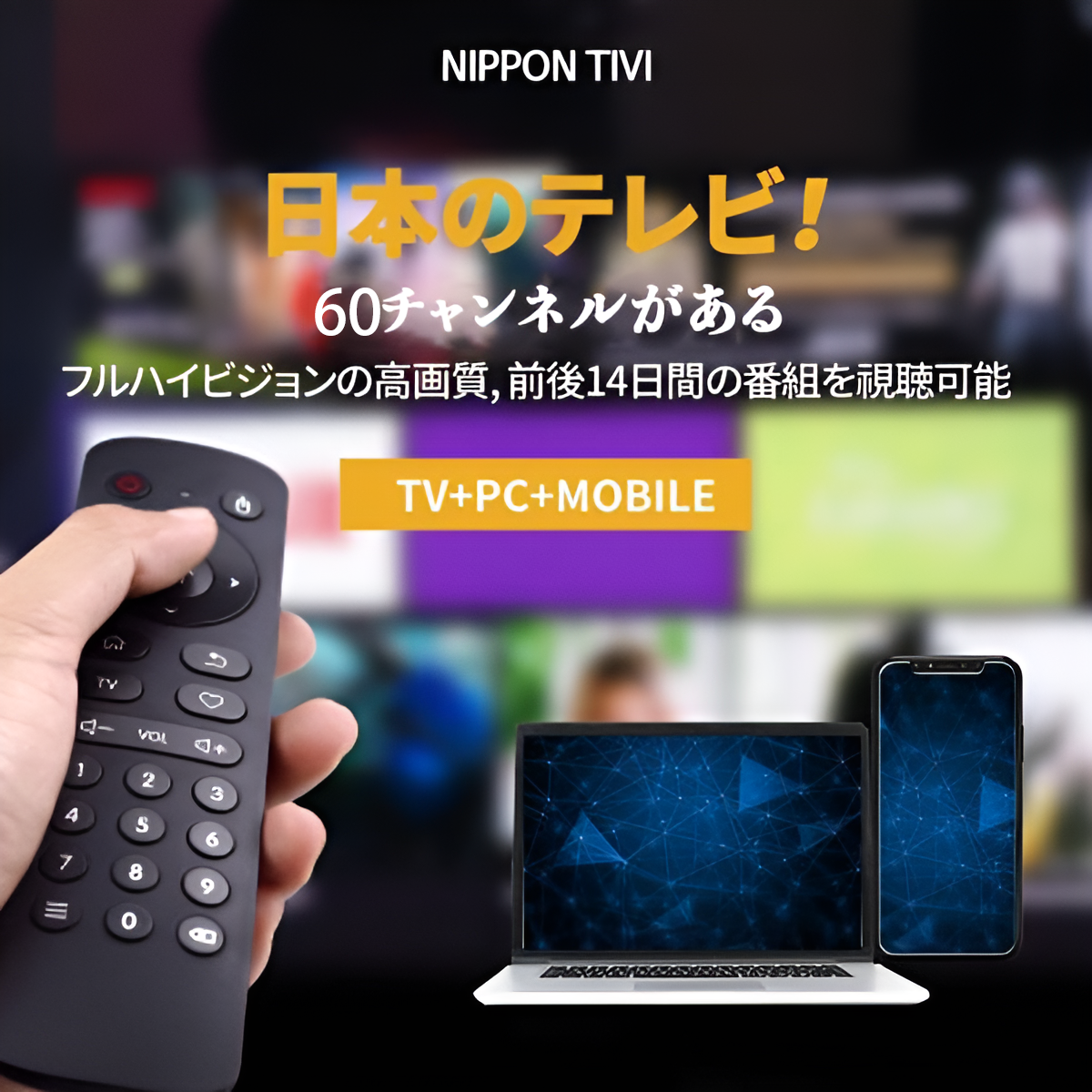
2026 New MujiTV boasts up to 90 high-quality live Japanese channels, paired with an intuitive user interface for hassle-free use.
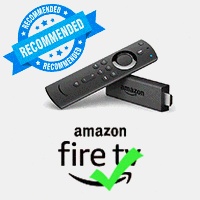
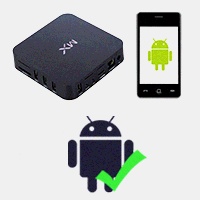
You can stream live Japanese TV on a range of devices: Android Box, iPhone/Android phone, iPad/Android tablet, Apple/Windows computer, or Amazon Fire TV Stick.
Got any questions? Our customer service team is ready to assist and address all your inquiries.
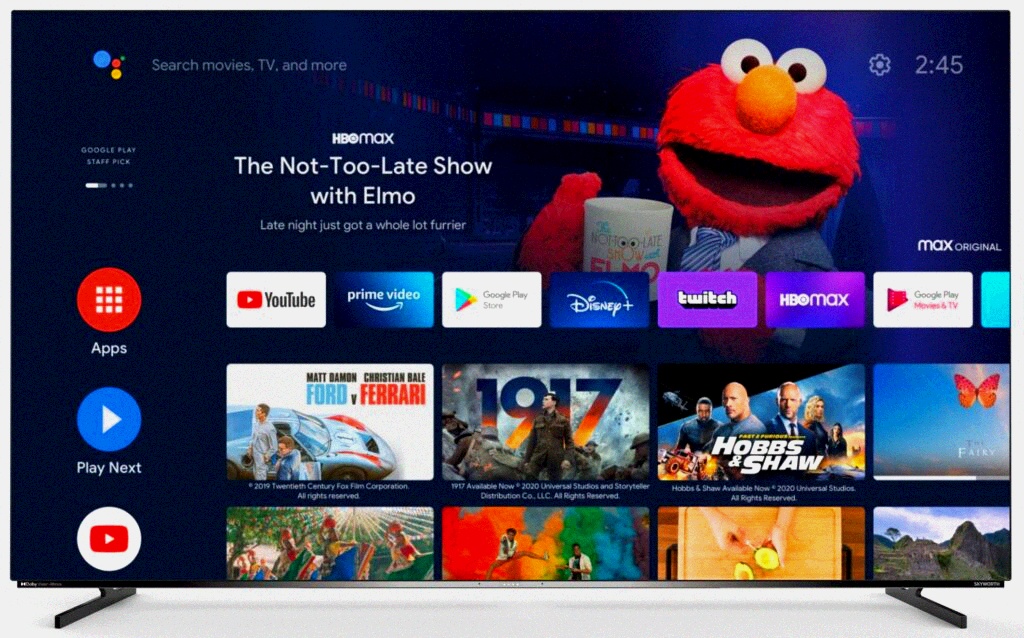
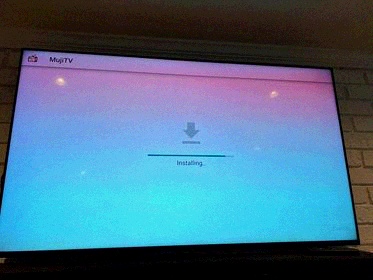
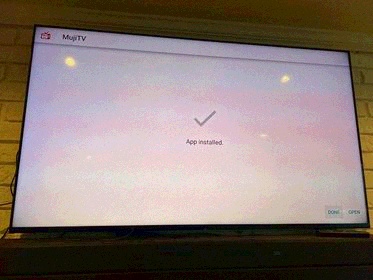
Android-compatible devices — including Amazon Fire Stick, Google Chromecast, and Android boxes — need to download and install the MujiTV app (APK file) to watch MujiTV smoothly.
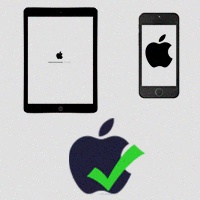
For iOS devices (iPhone), Windows PCs, Macs: no need to install the MujiTV app at all. Just visit https://mujitv.com and enjoy live Japanese TV directly online.
(For detailed installation instructions, download the MujiTV User Manual)
Step 1 – Install the MujiTV App / Prepare for Access
If you’re using Android-powered devices (including Amazon Fire Stick, Google Chromecast, smart TVs, and Android set-top boxes), first download and install the MujiTV App (in APK file format). Detailed installation instructions can be found in the 「Frequently Asked Questions (FAQ)」section at the bottom of this page.
If you’re using Apple or Windows devices (iPhone/iPad/Mac or Windows PC), no app installation is required—proceed directly to Step 2.
Step 2 – Purchase a MujiTV Subscription Plan
Select a MujiTV plan available on this page. Payments are supported via credit card.
After successful payment, you will be automatically redirected to the Smart Cloud Service official website—there’s no need to register for a Smart Cloud Service account. Simply close the login window; this will not affect subsequent operations.
Step 3 – Receive Your MujiTV Recharge Code
You will receive an email from Smart Cloud Service with the subject line 「Congratulations! You have received a special gift from us」, which contains your unique MujiTV recharge code.
⚠️ Note: Recharge code emails are only sent during Japan Time 9:00 AM – 5:00 PM (business hours). Please wait patiently.
Step 4 – Activate Your MujiTV Recharge Code
For Android devices: Open the installed MujiTV App;
For Apple/Windows devices: Open your web browser and visit the official website https://mujitv.com;
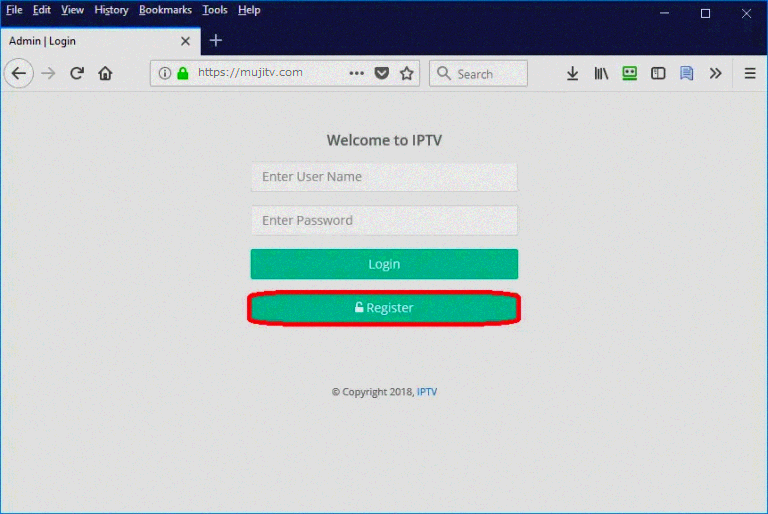
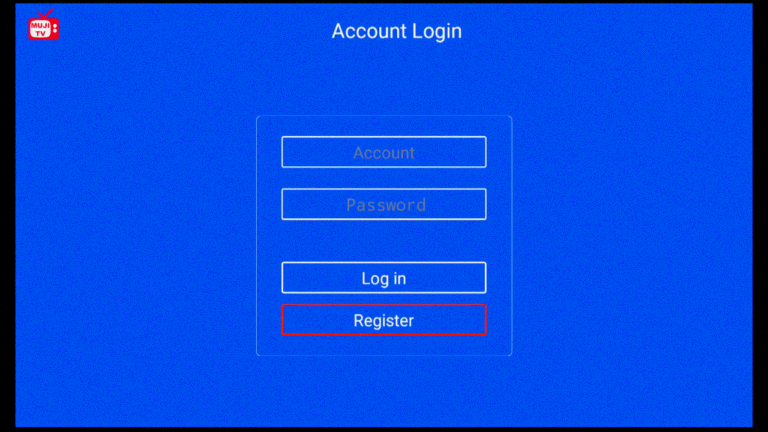
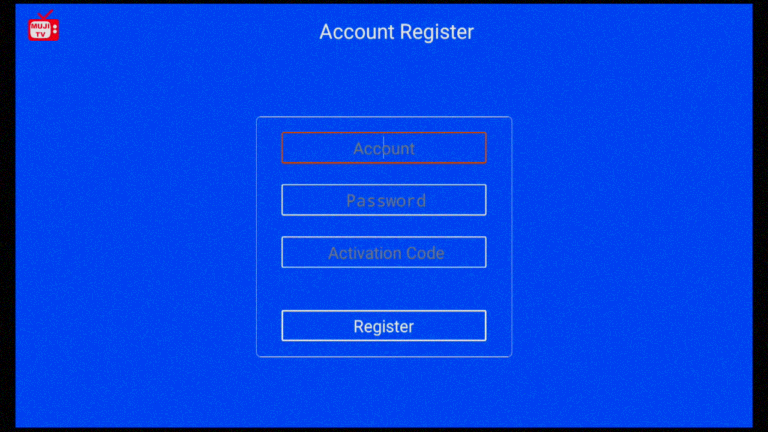
Click the 「Register」 button on the page, follow the prompts to create your exclusive MujiTV username and password, then enter the 「Recharge Code」 received in Step 3 to activate your subscription.
Step 5 – Enjoy Japanese Live TV on MujiTV
After registration and activation, use the username and password created in Step 4 to log in to MujiTV—on Android devices (via the App) or computers (by visiting https://mujitv.com)—and start watching live content. If you’re satisfied with the service, you can easily renew your subscription directly on the platform.
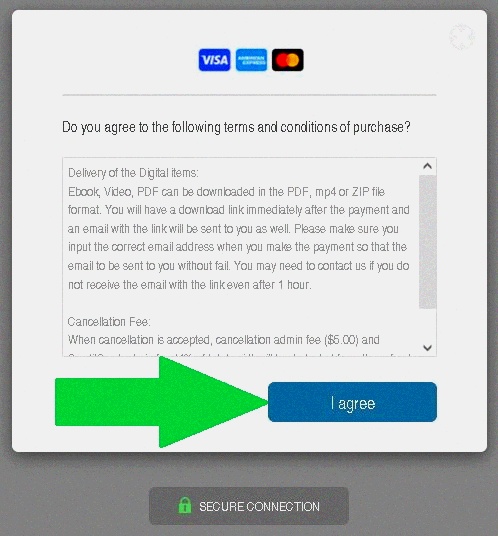
We use SSL secured Credit Card payment to process all orders. When checking out, simply click on the buttons shown to proceed with your purchase.
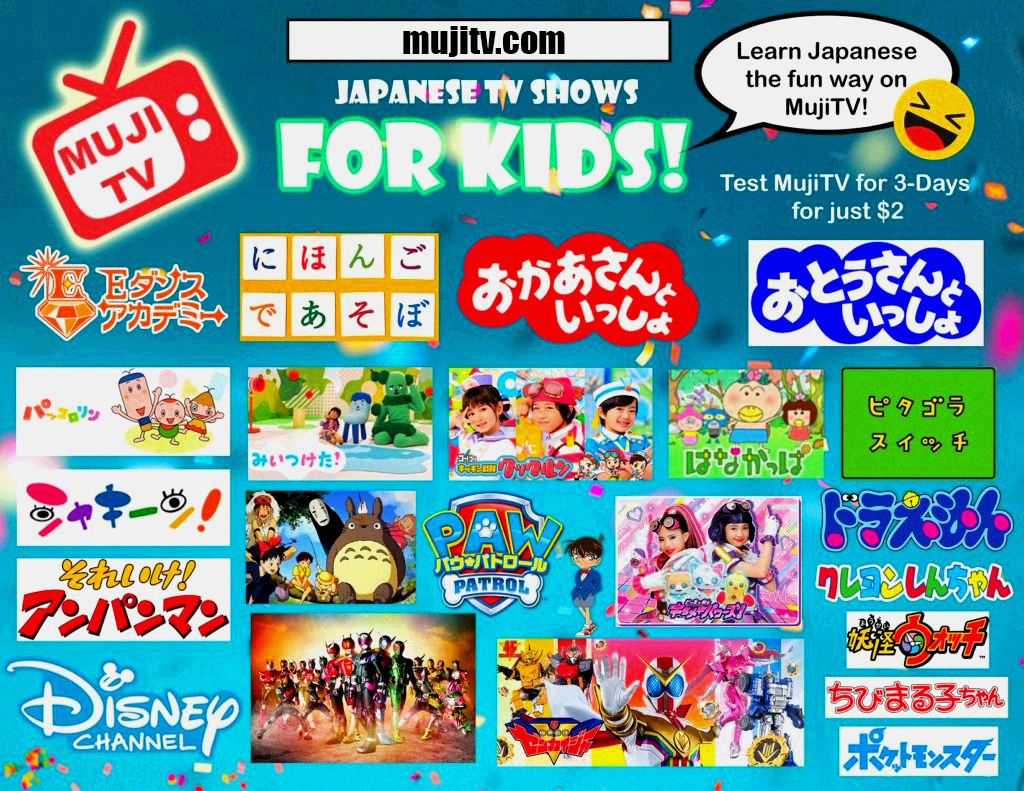
Tuning into live Japanese TV with MujiTV is the perfect way for you and your family to stay in the loop with Japan’s latest trends—from breaking news and entertainment highlights to popular culture moments. It’s also a fantastic opportunity to immerse yourself in the Japanese language, picking up new vocabulary through real, contextual content.
With MujiTV’s extensive channel selection, you’ll find diverse programming that caters to every age group and interest. Whether you’re into anime, sports, music, or hit dramas, there’s something for everyone to enjoy while gaining fresh insights. Why hesitate? Sign up now and dive into the exciting world of Japanese live TV!
MujiTVPRIME boasts tens of thousands of films and TV shows, covering a complete range of entertainment preferences! From classic movies, heartwarming human stories, hilarious comedies and thrilling action flicks, to imaginative sci-fi & fantasy, spine-tingling horror, popular anime and top-tier dramas — there’s something for every taste.
We also feature exclusive VOD Japan resources, plus short dramas and an extensive collection of movies. Whether you’re chasing trending new releases, nostalgic concluded series, test content, or a variety of other works, we’ve got you covered. Dive into our massive library and unlock an immersive Japanese entertainment experience with just one click!
You can use this Recharge code to subscribe or renew your MujiTV PRIME account only. Note: You Cannot use this Recharge code for MujiTV MINI accounts.
1 TV +1 Website + 1 Mobile
Recharge Code
3-Day Test $4.00 USD
Recharge Code
1-Month $20.00 USD
Recharge Code
3-Month $50.00 USD
Recharge Code
1-Year $150.00 USD
MujiTV PRIME Channel List
A total of more than 90 channels,A vast number of movies and TV dramas.
(The number of channels is subject to the MujiTV platform, and this site is for reference only.)
1. NHK総合1・東京 HD
2. NHKEテレ1・東京 HD
3. 日テレ HD
4. TBS HD
5. フジテレビ HD
6. テレビ朝日 HD
7. テレビ東京 HD
8. MBS毎日放送 HD
9. ABCテレビ HD
10. 関西 テレビ HD
11. よみうりテレビ HD
12. テレビ大阪 HD
13. サンテレビ HD
14. NHK BS HD
15. BS 松竹東急 HD
16. BS日テレ HD
17. BS朝日 HD
18. BS-TBS HD
19. BSテレ東 HD
20. BSフジ HD
21. WOWOWプライム HD
22. WOWOWライブ HD
23. WOWOWシネマ HD
24. BS10 HD
25. BSよしもと HD
26. Mondo TV HD
27. WOWOW プラス HD
28. BSアニマックス HD
29. 日本映画専門チャンネル HD
30. ディズニー・チャンネル HD
31. BS釣りビジョン HD
32. グリーンチャンネル HD
33. ゴルフネットワーク HD
34. J Sports 1 HD
35. J Sports 2 HD
36. J Sports 3 HD
37. J Sports 4 HD
38. スカイA HD
39. GAORA Sports HD
40. ムービープラス HD
41. MTV HD
42. ナショナル ジオグラフィック HD
43. アニマルプラネット HD
44. ディスカバリーチャンネル HD
45. キッズステーション テレビアニメ HD
46. カートゥーン ネットワーク HD
47. 映画・チャンネルNECO HD
48. 衛星劇場 HD
49. 東映チャンネル HD
50. ホームドラマチャンネル HD
51. ファミリー劇場HD
52. 時代劇専門チャンネル HD
53. Dlife
54. CNN
55. BBC World News
56. NHK総合・大阪 HD
57. TOKYO MX HD
58. Disney Junior HD
59. Midnight
60. Honey TV
61. PlayBoy
62. KBS1
63. SBS
64. JTBC
65. TVN
66. M NET
67. 日テレジータス HD
68. 日テレ HD
69. TBS HD
70. フジテレビ HD
71. テレビ朝日 HD
72. NHK総合・大阪 HD
73. サンテレビ HD
74. MBS毎日放送 HD
75. ABCテレビ HD
76. 関西 テレビ HD
77. よみうりテレビ HD
78. テレビ大阪 HD
79. NHK総合1・東京 HD
80. NHKEテレ1・東京 HD
81. NHK World
82. テレビ東京 HD
83. TOKYO MX HD
84. NHK総合1・東京
85. NHKEテレ1・東京
86. 日テレ
87. TBS
88. フジテレビ
89. テレビ朝日
90. テレビ東京
91. TOKYO MX
Movie VOD
1. 映画
2. ヒューマンストーリー
3. コメディー
4. アクション
5. SFファンタジー
6. ホラー
7. アニメ
8. ドラマ
9. 18+
10. 他の作品
11. 短編ドラマ
Whether you have questions, need technical help, or want to apply for a refund, don’t hesitate to reach out to us!
Just submit a ticket to our technical team or sales team—we’ll get back to you and resolve your issue promptly.
MujiTV Demo
For Smart TV / Google TV Users
(Or users of: Amazon Fire Stick, Google Chromecast, Android Box):
Frequently Asked Questions (FAQ)
Switching to another channel server can usually resolve this issue and restore a smooth viewing experience. Simply access the channel settings in the MUJI TV app or our website and select another channel server to connect to. Since there are multiple channel server options available, you can quickly and easily find the one that best suits you.
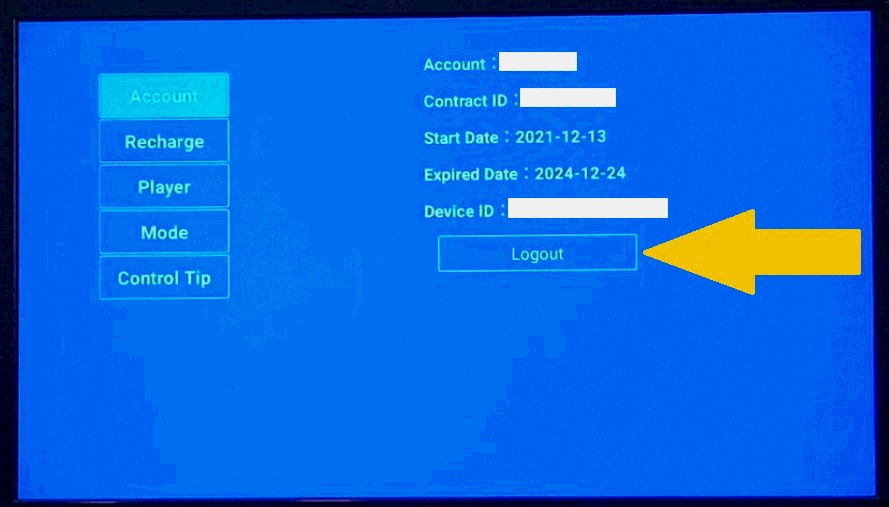
1) Open the MujiTV app and from the main screen click the “Setting” button. From the settings menu, click on “Logout“.
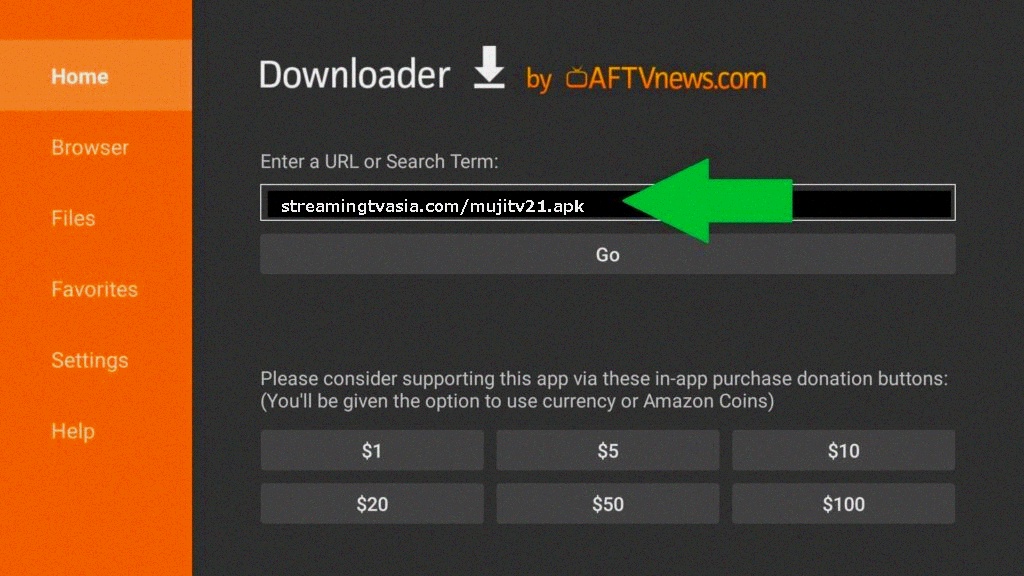
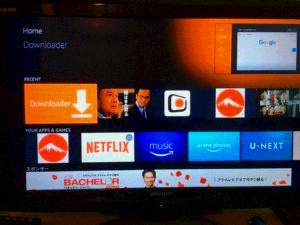
2) Open the “Downloader” app. This can be installed from the app store.
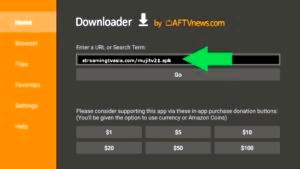
3) In the Downloader URL, enter the following download link:
.com/mujitv21.apk
4) Press “Go” and the MujiTV app will download and install.
5) Log back into your MujiTV account.
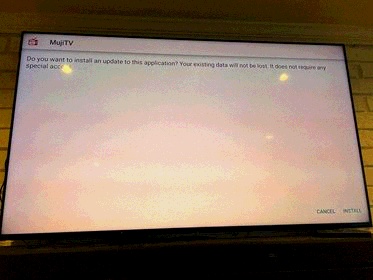
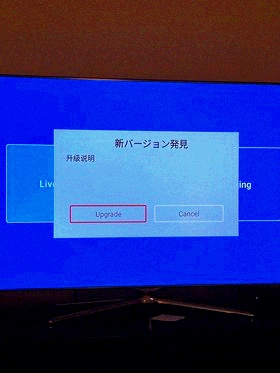
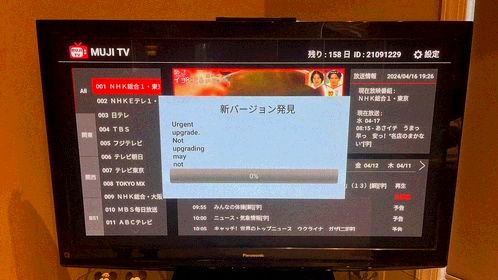
In April 2024, MujiTV released an app update for Android devices, including smart TVs, Amazon Fire Stick, Google Chromecast, and Android boxes. Users encountered a popup prompting them to upgrade the app, but the upgrade progress remained stuck at 0%. This issue was promptly reported, and MujiTV swiftly addressed it with the release of an update (version 2.1).
To fix this issue, open the MujiTV app and from the main screen click the “Setting” button. From the settings menu, click on “Logout“.
Then, open the “Downloader” app and insert the following download link to install MujiTV v2.1:
/mujitv21.apk
Press “Go” and the MujiTV app will download and install.
In order to register MujiTV, you will need create a MujiTV username and password. This can be done online by going to https://mujitv.com. Enter your username and password and click on “Register“. Once registered, log in to MujiTV using your created username and password and enter your Recharge Code (sent by email from Smart Cloud Service) then click “Recharge“.
When a user tries to log into their MujiTV account on two or more streaming devices without logging out of the first device, the error message “Login failed: MAC address not correct” will appear. Until you log out of the old device, you cannot log in on the new device.
Open the MujiTV app and from the main screen click the “Setting” button. From the settings menu, click on “Logout“.
If you are unable to log out of the old streaming device for any reason, please contact MujiTV technical support for us to log you out of your account.
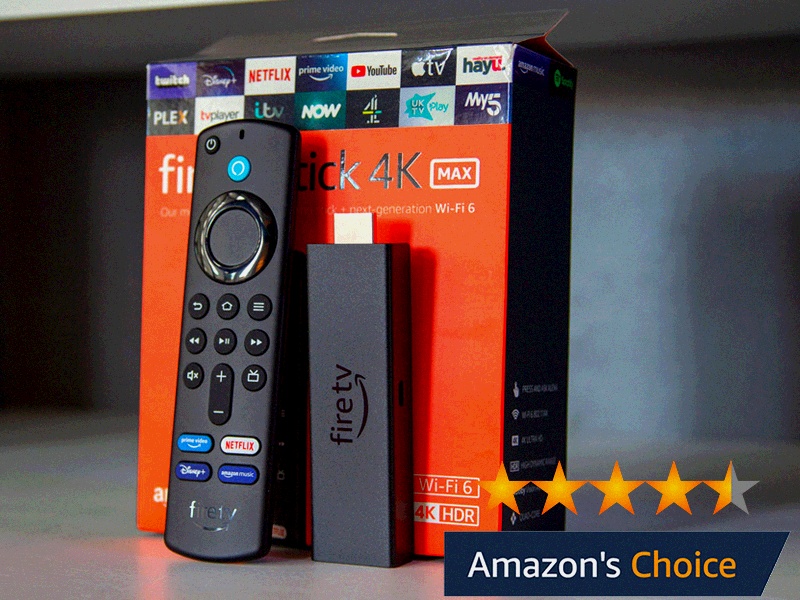
We recommend using the Amazon Fire TV Stick 4K or 4K Max. Click here to purchase one. See “How do I install MujiTV onto my Amazon Fire TV Stick?” in the questions section below for Amazon Fire TV Stick installation instructions. For detailed installation instructions, download the MujiTV User Manual for Amazon Fire Stick.
For someone who is not tech savvy (for example: your parents, Grand parents, etc.) we recommend the hassle-free YSE Smart IPTV Box that comes with MujiTV pre-installed. It is tested and proven to be fast and effective. Simply plug it in, open the MujiTV app, create a user name and password, and enter the MujiTV subscription Recharge code found on your Order confirmation email from Smart Cloud Service and away you go!
After completing your MujiTV purchase you will receive two emails. One from PayPal for you purchase receipt (emailed immediately after purchase), and another email from Smart Cloud Service that contains your MujiTV Recharge code (emailed within an hour after purchase). If you don’t see the mail from Smart Cloud Service in your inbox, the email may have gone to your junk email box so make sure to check there too.
Note: After purchasing MujiTV, you will be redirected to the Smart Cloud Service website. There is no need to sign up, simply close the window and wait for an email from Smart Cloud Service which you should receive within a few minutes after your purchase.
Follow these instructions to install MujiTV on your Amazon Fire TV stick:
1、Go to Apps > Search. Search and install “Downloader“
2. After the Downloader installation is completed, open the Downloader app.
3. Enter the following URL in Downloader to download the MujiTV app: streamingtvasia.com/mujitv21.apk. Click on “Go” to download MujiTV.
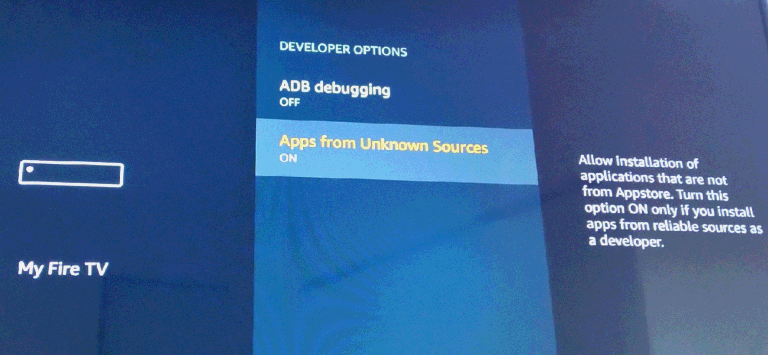
4. Follow the on-screen instructions to install MujiTV. If asked to allow installation of apps from unknown sources, turn ON. (Also located in: Settings > My FireTV > Developer Options > Turn ON “Apps from Unknown Sources”).
5. Go back to the FireTV home menu and click on MujiTV to start the application.
Note: If you having difficulty watching some channels on the FireTV Stick, please change the Player by clicking the “Settings” Button at the top right on the main screen.
Download the MujiTV APK file here and install the software onto your device. Follow the instructions on the follwing video to activate or renew your product.
Follow these instructions to watch MujiTV on your Andoid/iPhone, tablet/iPad, Windows PC, Mac Computer:
Go to https://mujitv.com and click “Register” via web browser. Create a username and password.
2. Log in to your MujiTV account and enter the Recharge Code found on the email from Smart Cloud Service.
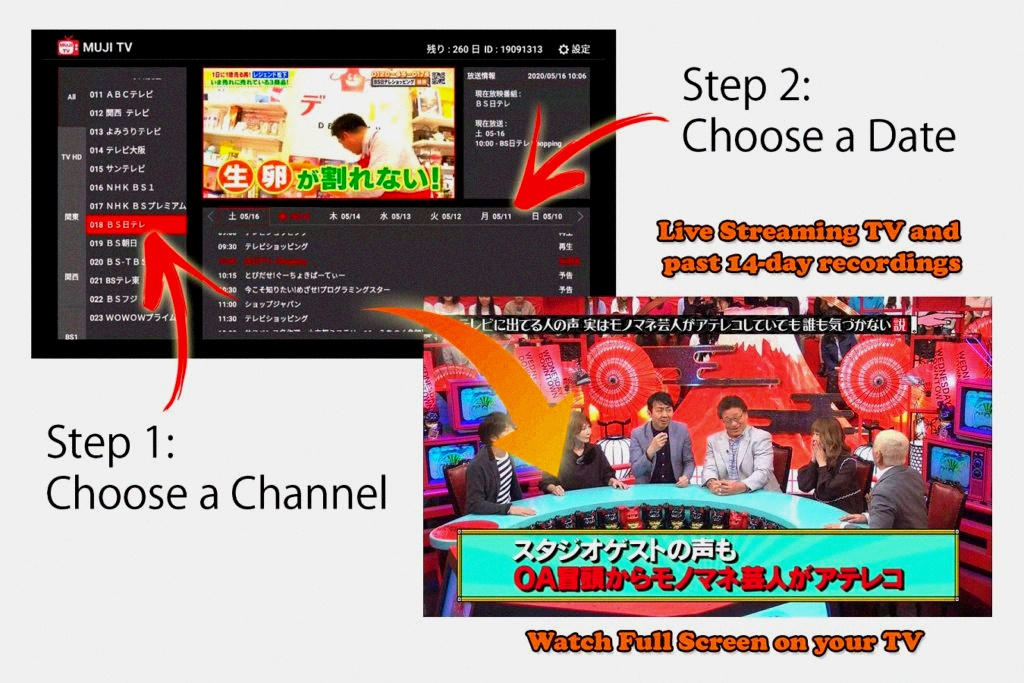
3. Click on “Recharge” and you will automatically be redirected to the MujiTV player. Select the channel you want to watch, followed by the date and enjoy Japanese TV!
Note: If you are using an IOS device (iPad, iPhone, etc.) use SAFARI as your browser.
Note: If you want to use your computer or laptop to display MujiTV on your TV screen (video and audio), use an HDMI cable to connect your computer to your TV and enjoy MujiTV on your TV screen.
Follow these instructions to register MujiTV on your Andoid TV box:
Select “Register” (for new users only)
2. Create an Account name (more than 6 characters) and Password. Enter your Recharge Code found on the email from Smart Cloud Service. Click “Recharge“.
Yes, however you can only log into one device at a time. Dual logins are not permitted.
You will need to log out of your streaming device, in order to use your subscription on another device.
This can be done on an android box with the MujiTV APK app installed, but not on the online MujiTV version (mujitv.com). From the MujiTV app, go to the adult channel you want to block and select the “Settings” Icon (設定) at the top right of the screen. Create a passcode to be able to access the channel. The viewer will need to enter the correct password to be able to view the protected channel.
Go to the Fire TV home screen by pressing the Home button on the remote control.
2. At the Fire TV home screen, press and hold the Home button on the remote control.
3. Click on Apps.
4. Scroll down and look for the MujiTV app from the list of apps.
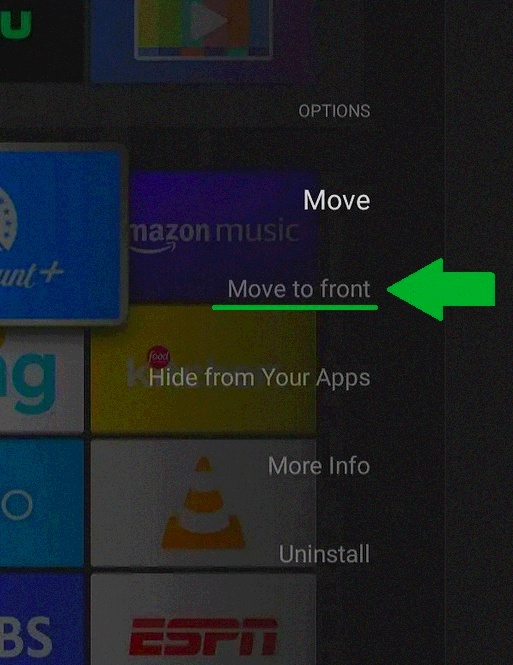
5. Select the MujiTV app and press the Menu button on the remote control.
6. Click on “Move to Front”.
7. Return to the home screen and MujiTV will appear at the top of all apps.
Download and install the Dashboard app (Dashboard – Actions, Recents & Sideloaded Apps) from the Google Play store.
2. After installing the Dashboard app, go to the Google TV home screen by pressing the Home button on the remote control.
3. At the Google TV home screen, press and hold the Home button on the remote control.
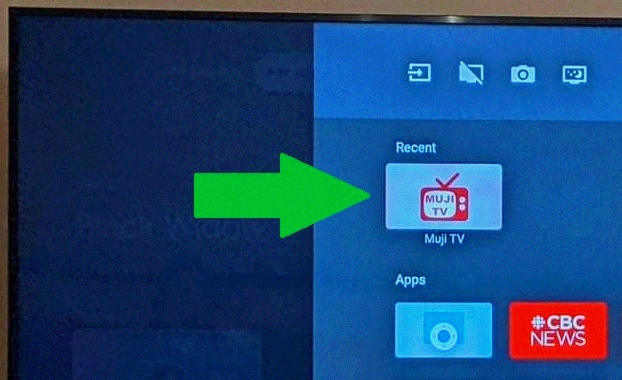
4. MujiTV should appear at the top under “Recents”.
(Note: If you don’t see MujiTV under “Recent” you will need to open the MujiTV app once from the “See all apps” screen. From the Google TV home screen click on your account icon at the top right of the screen. Then click “Apps” –> click “See all apps” –> Scroll down and click on MujiTV. From there after, MujiTV will show up under “Recent” whenever you press and hold the home button from the home screen.)
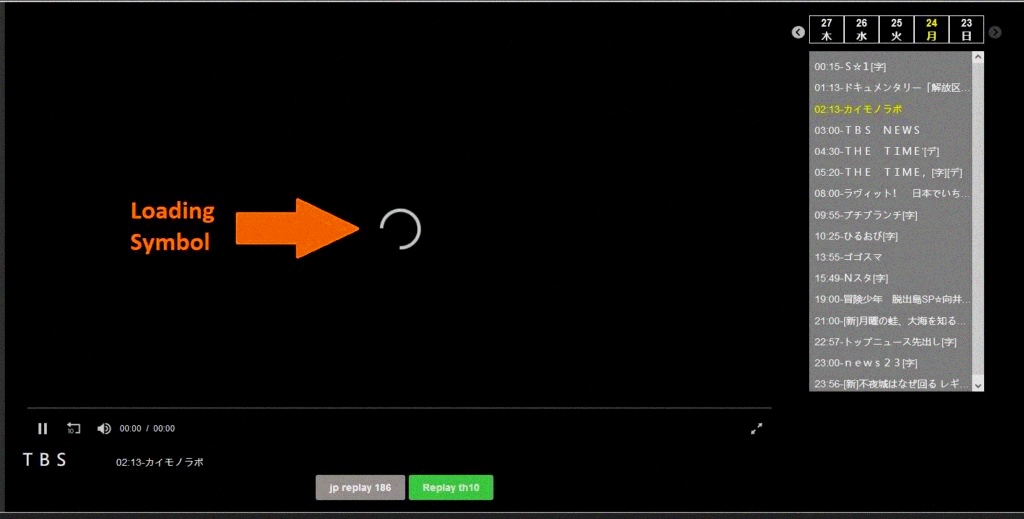
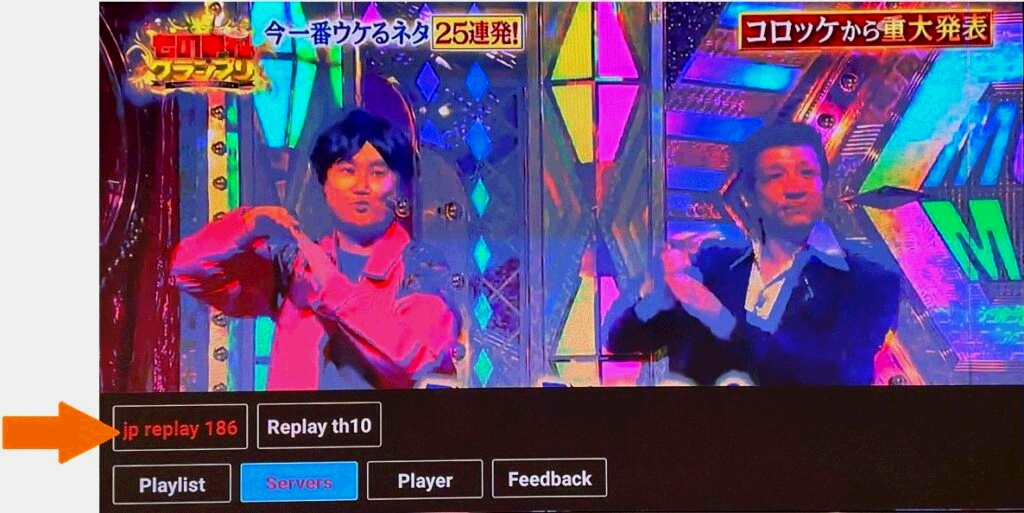
If a channel does not load and displays a rotating circle for a long period of time, you will need to change the channel server.
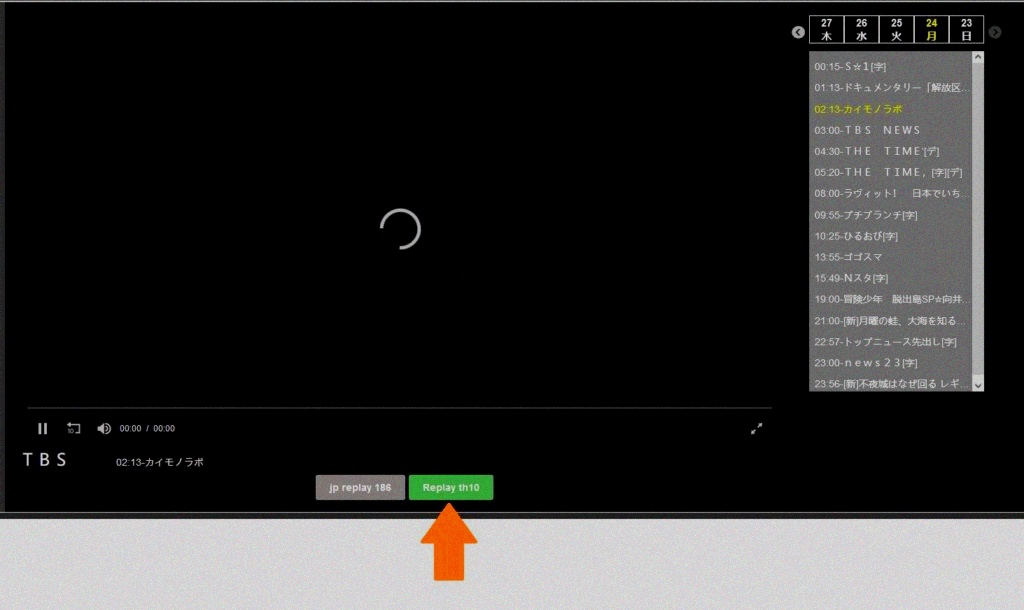
For browser users (MujiTV.com):
Click on the green button at the bottom of the screen. This will switch the channel data to another server. You should be able to see the TV show after this switch.
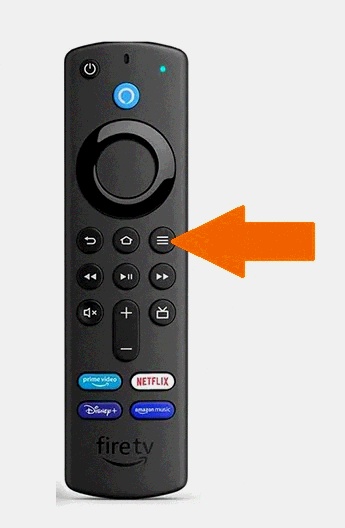
For Amazon Fire Stick Users:
Select the TV program with loading issues and go full screen
2. On the Fire TV remote control, press the menu button (button with three lines) to display the channel options
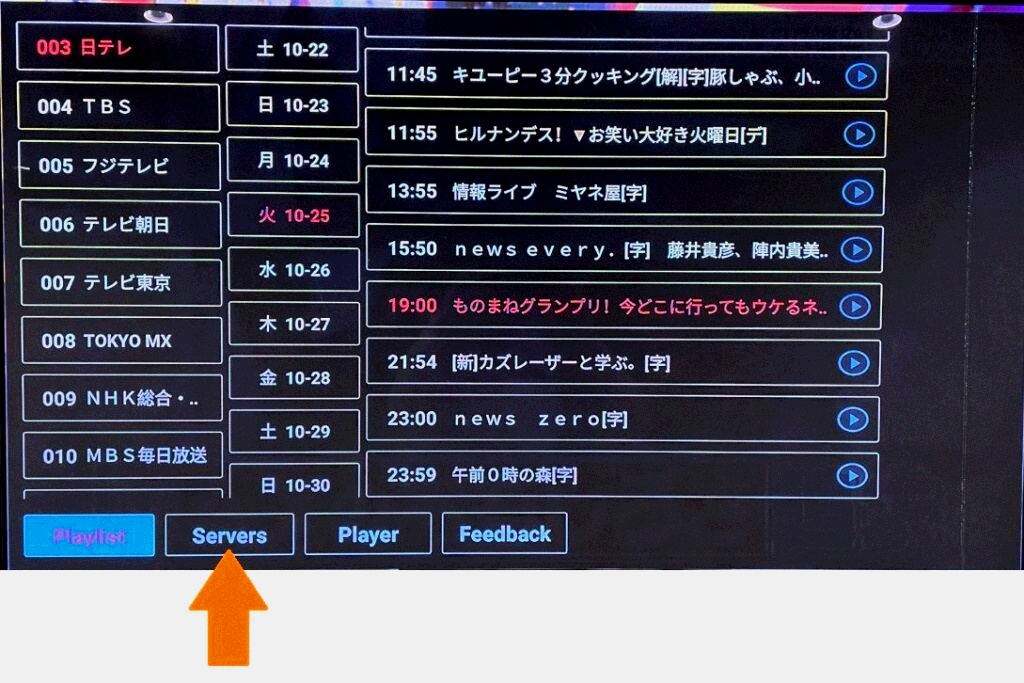
3. The channel options will appear. Select the channel “Servers” option.
4. Change the channel server to another server. You should be able to see the TV show after the server switch.
5. Press the return button to clear the options screen.
For Chromecast with Google TV users:
Open the MujiTV app and click on the setting icon at the top right of the screen (Gear icon).
Click “Player”, then change the Player to App Player.
Your MujiTV account will only be able to log into one streaming device at a time. Therefore if you are switching to a new device, you will need to log out of your account on the old streaming device.
Open the MujiTV app and from the main screen click the “Setting” button. From the settings menu, click on “Logout”.
Comments from our MujiTV Customers:
“I used to juggle 3 different streaming services just to get a few Japanese shows, but MujiTV changed everything. I canceled all the others and now only pay for MujiTV—my monthly entertainment bill is almost halved! The selection of Japanese channels is incredible, from drama series to variety shows and even live news. I watch it every night to unwind, and it feels like a little piece of Japan right in my living room. 10/10 recommend for anyone who loves Japanese content!”
— Nao Watanabe
“As a parent who wants my kids to stay connected to their Japanese heritage, I’ve tried everything—workbooks, tutors, even language apps. Nothing stuck until we started MujiTV. They binge-watch Japanese anime and kids’ shows on it, and their vocabulary and pronunciation have improved so much faster than with formal lessons. They now ask about Japanese traditions, cook simple Japanese snacks they see on TV, and even sing along to kids’ Jpop songs. It’s not just TV—it’s a fun, natural way for them to embrace their roots. Thank you, MujiTV!”
— Kaito Suzuki
“Living in Canada, I struggled for years to find reliable Japanese TV—cable options were pricey and had limited channels, and other streams buffered constantly. MujiTV is a game-changer! I can watch it on my laptop while working, my tablet during commutes, and cast it to my TV at home for movie nights. It’s so lightweight and works seamlessly everywhere, even when I travel to remote areas. The channel lineup is diverse (I’m obsessed with the food and travel shows!), and the quality is always crystal clear. I’ll never go back to traditional TV—MujiTV is worth every penny.”
— Rina Ito
Are you HAPPY with MujiTV?
Help spread the LOVE by sharing this page with your friends
❤️Share the LOVE
Dear one!
got a stream that shines—
Pass it on to friends and fam!
They’ll cheer the shows
they’ve been dreamin’ of,
Share the glow,
let joy expand, yeah!
Live international TV, NO LIMITS
— stream anywhere on the planet!
Grab an IPTV subscription right now
— it’s a total game-changer you won’t wanna miss!
GRAB YOUR AMAZON FIRE STICK 4K MAX RIGHT NOW
— ULTIMATE 4K STREAMING POWER, DON’T SLEEP ON THIS!
Want a top-notch IPTV streaming experience?
The Amazon Fire Stick 4K Max is your ultimate pick!
It’s our go-to recommended device
— perfect for binge-watching Himawari, Nozomi,
— NipponIPTV,MuJiTV,
— VPN Japanese channels, and iKorTV!